Start with Google Maps. You will check whether your business already has a listing, add or claim it, then verify that you manage the business. Google calls this listing a Google Business Profile. It holds details such as your address, phone number and opening hours. Adding or claiming one is free.
We’ll use Big Apple Personal Injury, at 377 Broadway, Floor 3, New York, NY 10013. Assume it has two attorneys and a staffed office with its own signs, where clients can visit. The firm and its details are fictional; only the street address is real.
Keep your firm’s real details handy as you follow along. Google may ask for them in a different screen order from the examples below.
1. Search for existing listings
Open Google Maps before starting a new profile.
- In the search box, type your business name and city. For our example: Big Apple Personal Injury, New York, NY.
- Run the search. Open any result that looks like your business and compare its name, address and phone number.
- Search again using the street address. If the firm used another name before, check that name too. For a law firm, also check the attorneys’ names.
Then take the path that matches what you found:
- No listing for your business: Continue to step 2 to add one.
- The correct listing is already there: Open it and look for Claim this business, then Manage now. Follow Google’s prompts to claim and verify that listing. You can use steps 3–6 below to check the details Google asks for.
- Someone else manages the listing: Use Google’s ownership request process. Do not make another profile to get around the existing owner.
- You already manage it: Open your Business Profile with the account that owns it, then go to step 7.
Finding a building at your address does not mean your business has its own listing. Other businesses at the same address are not your listing either. Google’s add-or-claim instructions cover these starting paths.
2. Open Google’s setup
Open Google’s add-business page. Use this route only if step 1 found no existing profile for your business.
- Sign in with the Google account your firm will use to manage the listing.
- Choose Add your business to Google if that option appears.
- Start entering the business details. If Google suggests an existing profile for your firm, check it before continuing with a new one.
Use an account the firm will keep access to. Write down which account you used so a future staff member does not have to guess. You do not need a new Gmail address: Google supports accounts that use a company email address too. See its getting-started guide.
3. Enter name and category
Keep the setup window you opened in step 2. Use Google’s category guide if you need help choosing. The business name identifies your firm; the category tells Google what kind of business it is.
- Enter Big Apple Personal Injury as the business name in our example. For your own listing, use the name on your firm’s website and signs.
- In the category field, type Personal injury attorney and select the matching option from Google’s list, if offered. Do not leave it as unselected text. For another kind of business, choose the closest specific category available.
- Continue to the next prompt.
Example · Name and category
- Business name
- Big Apple Personal Injury
- Primary category
- Personal injury attorney
Do not add phrases such as “best NYC accident lawyer” to the business name unless they are actually part of its name.
If you are the firm’s only attorney: Check Google’s practitioner rules before adding separate firm and attorney listings. For one public-facing attorney at a branded firm, Google recommends one shared profile named Firm name: Attorney name. Our example has two attorneys, so we are setting up the firm profile. Separate attorney profiles have their own eligibility rules.
4. Add your office address
Use Google’s address guide if the address or map pin needs correcting.
- If asked whether customers can visit your location, choose the option that matches your business. In our example, clients can visit the office.
- Enter 377 Broadway as the street address and Floor 3 in the second address line, if one is provided.
- Enter New York, NY, 10013, United States in the remaining address fields.
- If Google shows a map pin, check that it points to the right building. Correct it if needed before continuing.
Example · Office address
- Street address
- 377 Broadway
- Floor or suite
- Floor 3
- City
- New York
- State and ZIP code
- NY 10013
- Country
- United States
Open 377 Broadway on Google Maps to see the building used in our example.
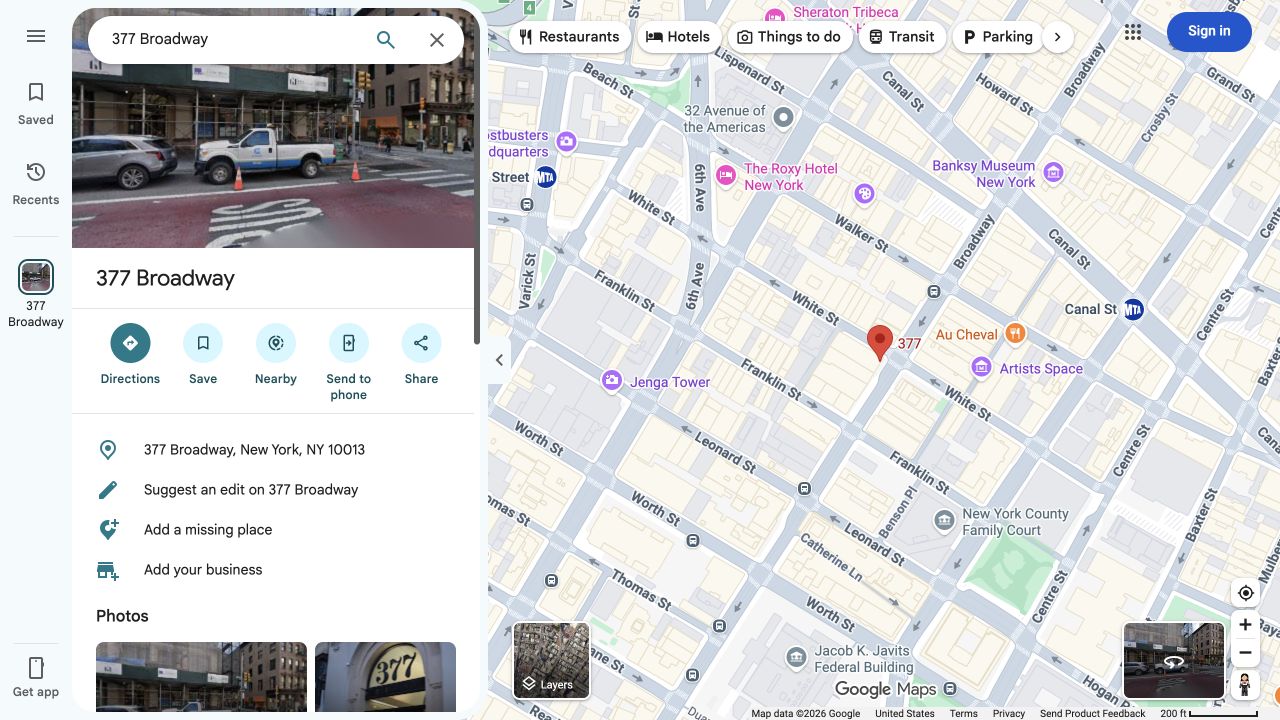
For your real business, use a location where you actually operate. A mailing address alone does not qualify as an office. A shared office must meet Google’s location rules, including staffing, signs and receiving clients.
5. Add your contact details
Continue in the setup form. Google’s profile-editing guide also explains where these details can be changed later.
- Add the phone number clients should use to reach your firm.
- Add the full website address, beginning with https://.
- Check both before continuing. A mistyped number or link sends a prospective client to the wrong place.
For Big Apple Personal Injury, we would enter (212) 555-0147 and https://example.com. Use your own phone number and website when setting up your listing.
Example · Contact details
- Phone number
- (212) 555-0147
- Website
- https://example.com
6. Verify your business
Follow Google’s verification instructions for the options shown on your profile. Verification is Google’s check that you are authorized to manage the business.
- Review the name, address and contact details you entered.
- When Google offers verification, select one of the available methods. Google decides which methods your business can use; you cannot assume a phone call, email or postcard will be offered.
- Complete the instructions for that method. For example, a video method may require you to show the location, signs and proof that you manage the business. If phone verification is offered, someone must be able to receive the code; an automated phone menu cannot do that.
- Wait for Google’s decision. Its guide says verification review can take up to five business days, with some cases taking longer.
7. Finish your profile
Open your Business Profile with the same Google account. If Google offered any of these fields during setup, review what you already entered.
Set your office hours
Use Google’s hours instructions alongside these steps.
- Select Edit profile, then Hours.
- Edit the business hours and choose Open with main hours.
- For our example, set Monday–Friday to 9 a.m.–5 p.m. Leave Saturday and Sunday closed.
- Select Save.
For your firm, use the hours clients can actually visit. Do not mark the office open all night just because someone answers the phone then. Appointment-only businesses have different guidance; check Google’s hours rules if that describes your office.
Describe what you do
Google’s editing guide explains the description field.
- Select Edit profile and find the business description.
- Write a short, factual explanation of your services. Do not put website links in this field.
- Save the description.
For our example firm, we could write:
Big Apple Personal Injury is a law firm in New York City. We help people with personal injury matters, including car accidents and slip-and-fall injuries. Our office is at 377 Broadway, Floor 3.
Use only services and claims that are true for your firm. Google reviews edits before they appear publicly, so a saved change may not show immediately.
Add real office photos
Open Google’s photo instructions if you cannot find the upload controls.
- Return to your managed profile on Google Search or Maps.
- Select Photos, then Add photos.
- Select your own photos of the entrance, office signs and space. These help someone recognize the office when they arrive.
Photos are reviewed before appearing publicly. Do not upload pictures of an unrelated firm or show private client documents.
8. Check the public listing
Open Google Maps and search for your business name and city again. Use a signed-out or private browser window to check what someone outside your firm sees.
- Open the correct listing. Confirm that the name, category, address and floor are right.
- Open the website link. Make sure it reaches your actual site and works on a phone.
- Check the listed phone number against your firm’s number. Make a test call to your own firm if you need to confirm where it goes.
- Check the hours and photos. Could a first-time visitor tell when and where to arrive?
- Save the public Maps link and the name of the account that manages it in your firm’s records.
If the profile is still awaiting verification or an edit is pending, return to your management page and check its status. Do not start a second listing because the first one has not appeared yet. Google’s guide to finding your business explains the checks to make next.
You have finished this walkthrough when your verified profile shows the correct information to the public. From then on, update it when your phone number, office, hours or website changes.
When you’re ready to review how your firm answers incoming calls, see Lighthouse’s AI answering for personal injury firms.