If your firm uses Clio Manage, Lighthouse can add intake details to a contact note after a call. Staff can review the summary and answers in Clio, then return to Lighthouse when they need the full conversation.
A contact is a person’s record. A matter is the case your firm manages. This connection finds or creates a contact and adds a note; it does not open a matter or accept a case. Clio’s contact guide explains the distinction.
We’ll follow Alex Morgan, a fictional caller to Big Apple Personal Injury, through the steps. Alex reports a shoulder injury and an urgent-care visit after a car accident. The example note below is an illustration, not a live client record.
1. Connect your Clio account
Open Lighthouse’s general settings. Use an account that can manage your firm’s settings, and have the person authorized to connect your Clio account available.
- Find Case Management System.
- Select Connect to Clio if no account is connected.
- Complete Clio’s sign-in and authorization steps for the firm’s intended account.
- Return to Lighthouse and check that Clio is shown as Connected.
If it is already connected, check the account shown rather than reconnecting it. If Lighthouse shows Token Expired, use Reconnect to renew the connection.
2. Choose calls to send
Stay in Lighthouse’s general settings, in the Case Management System section.
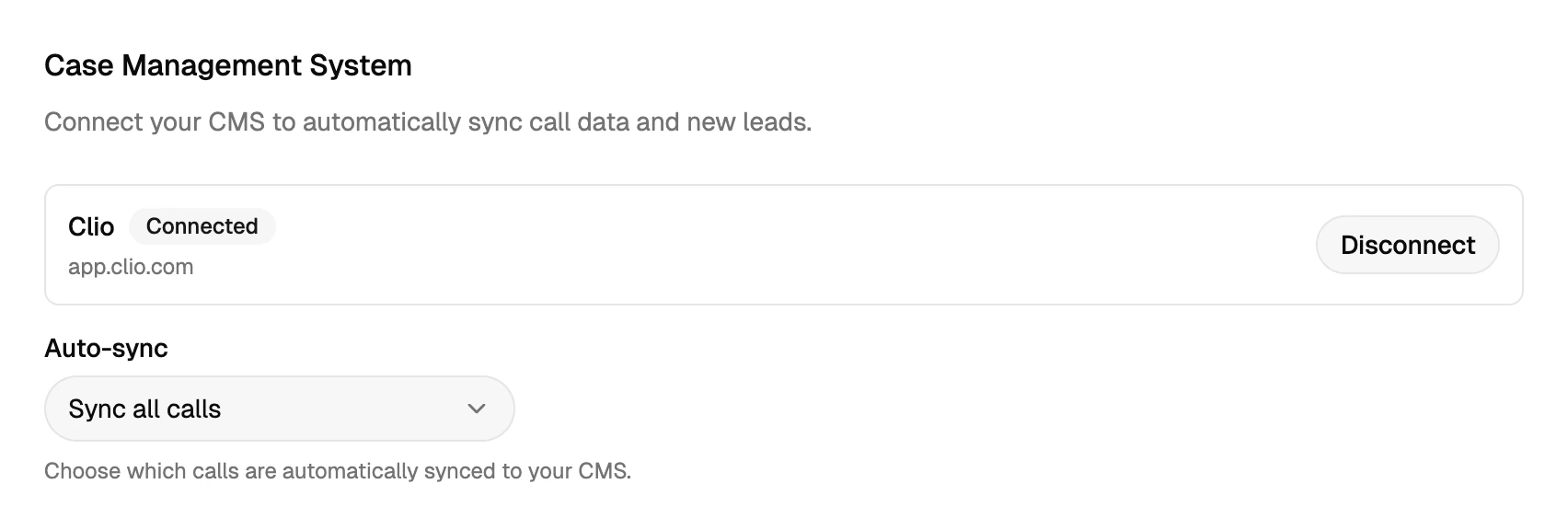
- Open Auto-sync.
- Choose Sync all calls or Only qualified leads, based on what your team wants to review in Clio.
- Select Save in the unsaved-changes bar.
For this walkthrough, Big Apple Personal Injury chooses Sync all calls, as shown above. For the first check, use a call that matches the selection you configured.
Agree on who will review the notes. A connection gets information into Clio; your staff still decide what to do with it.
3. Check the Lighthouse record
Open Lighthouse’s call list after an agreed test call using made-up caller details. The dashboard walkthrough shows the call list and record views.
- Open the call you want to check.
- Confirm the caller’s name and callback number.
- Read the intake fields and AI summary. Do they give your team what it needs to assess the inquiry?
- Look for Synced to CMS. Here, CMS means case management system. CMS sync pending means the sync has not finished; CMS sync failed means it needs attention.
For Alex’s call, the useful answers are the reported accident, shoulder injury and urgent-care visit. Start with those extracted details and the summary. If something looks wrong or the exact wording matters, open the transcript in Lighthouse to check what Alex said. The call-record guide explains these levels of detail.
An email notification does not confirm that the Clio sync succeeded. Check the status and the actual contact note.
4. Open the Clio note
Open Clio Manage. Clio’s contact-dashboard guide shows where to find the contact and its Notes tab.
- Select Contacts and find the caller, or search for the contact’s name in the top search bar.
- Open the contact. Compare the phone number with the Lighthouse call, especially if people share a number or have similar names.
- Select the contact’s Notes tab and open the intake-call note.
- Compare the summary and intake answers with the Lighthouse record.
Lighthouse looks for an existing contact or creates one when needed. Checking the contact is important: a successful sync does not replace that review.
Example · Information in Alex's contact note
- Summary
- Alex called about a car accident, reported a shoulder injury and said they visited urgent care.
- Accident
- Car collision
- Injury
- Shoulder injury reported by the caller
- Treatment
- Urgent-care visit
The note also includes the call result. Intake answers appear as labeled text in the note, not as separate Clio custom fields.
5. Know what stays where
Use the call-record guide when you need more detail than the note provides.
| What you need | Where to look |
|---|---|
| Call result, summary and captured intake answers | The note on the Clio contact. |
| Full transcript and recording | The call record in Lighthouse. |
| The caller’s exact wording | The Lighthouse transcript; use the recording when you need to hear the conversation. |
| A new matter | Your firm’s normal Clio workflow, after staff review. This call sync does not create it. |
For Spanish-language calls, Lighthouse provides the original Spanish and an English translation. Those transcript views stay in Lighthouse rather than being copied into the Clio note.
6. Assign the next action
Name the person who will review the note and decide whether to call back, request more information or take another step in your firm’s process. A saved note is not confirmation that someone spoke with the caller.
If a note is missing, check the sync setting from step 2 and the call status from step 3. If the sync failed or the note reached the wrong contact, review the connection and call with your team before relying on it. Do not assume that an email means every part worked.
A live transfer is separate from this saved note. Our forwarding and transfer guide shows how the phone call reaches staff while the call details are saved for later review.
Bring your intake questions and Clio workflow to a Lighthouse demo. Follow one example from the conversation to the contact note, then confirm what your staff should do next.