
A call came in while you were meeting with a client. Lighthouse answered, and now you need to know who called, what happened, and whether anyone at the firm needs to follow up.
Your team can see those calls in the dashboard, read what the caller said, and review the information collected. The record helps you prepare for the next conversation with the caller.
Note: If you’re still choosing what Lighthouse should ask or which people should receive calls, start with How to customize Lighthouse to your firm.
See a call while it’s happening
A new call appears in the dashboard with a Live label. Open it to see the conversation as the transcript fills in.
That can be useful when you’re expecting an inquiry or want to understand a call before it reaches your team. You can read what has been said so far without waiting for the completed record.
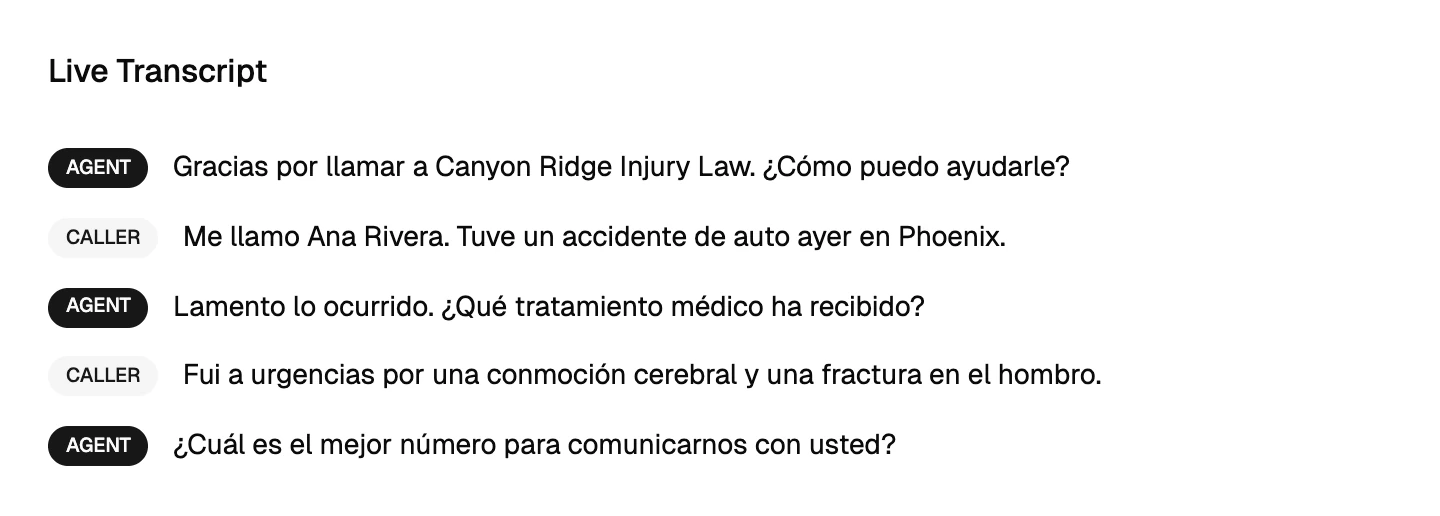
Ana says she was in a car accident in Phoenix and received emergency treatment. Lighthouse asks for the information the firm chose to collect.
If a call fits the firm’s routing choices, Lighthouse can try to connect the caller with a team member. Those choices depend on the firm’s business hours, daytime and after-hours contacts, and the call categories assigned to them. In this example, the agent offers to connect Ana with Avery Chen, an attorney at the firm.
Your staff don’t have to keep the live page open for Lighthouse to handle the call. The page gives them visibility when they want it.
Review the record after the call
When the call ends and analysis is complete, the live view automatically becomes a full call details page. It includes the caller’s identity, a summary, the call outcome, the transcript, and the intake information collected.
Start with the summary to understand the reason for the call. Then check Extracted Data for the specific details your team needs before responding.
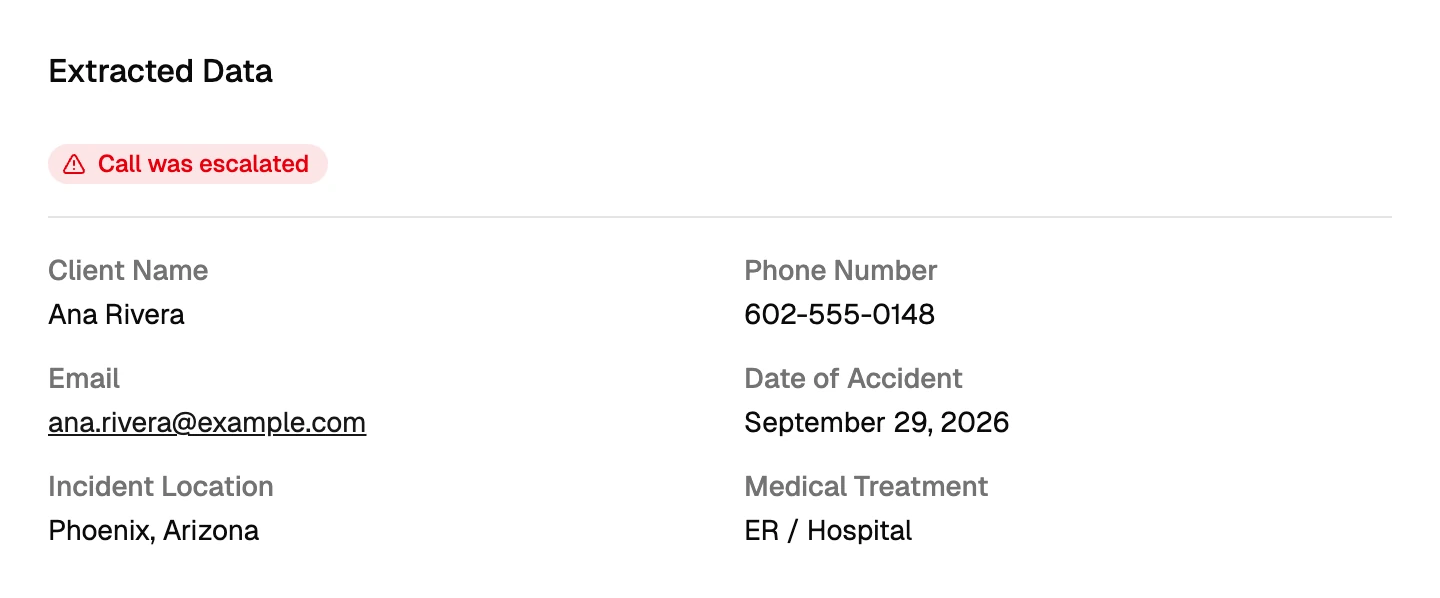
Ana’s example record includes her name, callback number, email, accident date, incident location, and medical treatment. These correspond to the information selected in the firm’s settings.
Use the record to prepare the next conversation. A paralegal can confirm the callback number and see which details are already available. An attorney can understand why the call was passed along. If something is missing or unclear, check the transcript and ask the caller when you follow up.
The record gives your team a starting point. The firm still evaluates the matter and decides what happens next.
Read a Spanish call in English or in the original language
Your staff may want different views of the same conversation. Someone reviewing intake may prefer English; a Spanish-speaking colleague may want the caller’s original words before returning the call.
Lighthouse detects the call’s language. For Ana’s Spanish call, the completed transcript offers English and Spanish (Original). Switch between them to review the translated conversation or the original Spanish.
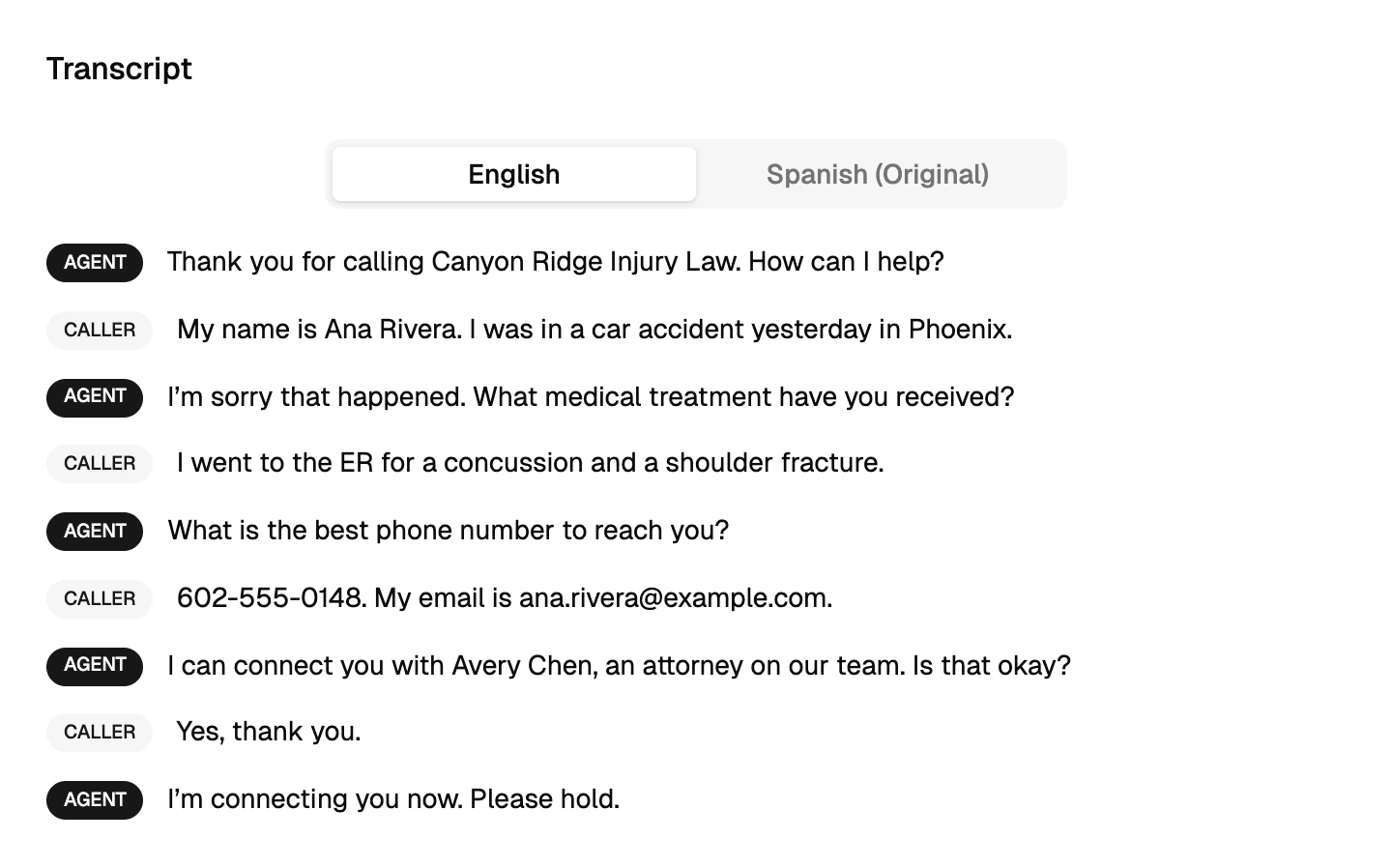
When a detail in the summary needs more context, use the transcript to read the question and the caller’s answer together. If an answer is ambiguous, your follow-up is the opportunity to clarify it.
Decide what needs attention today
When you return to the dashboard, the calls table brings the records together. The totals above it show overall call volume and the recorded outcomes. Search by the caller’s name, phone number, or what was said to find a particular conversation.
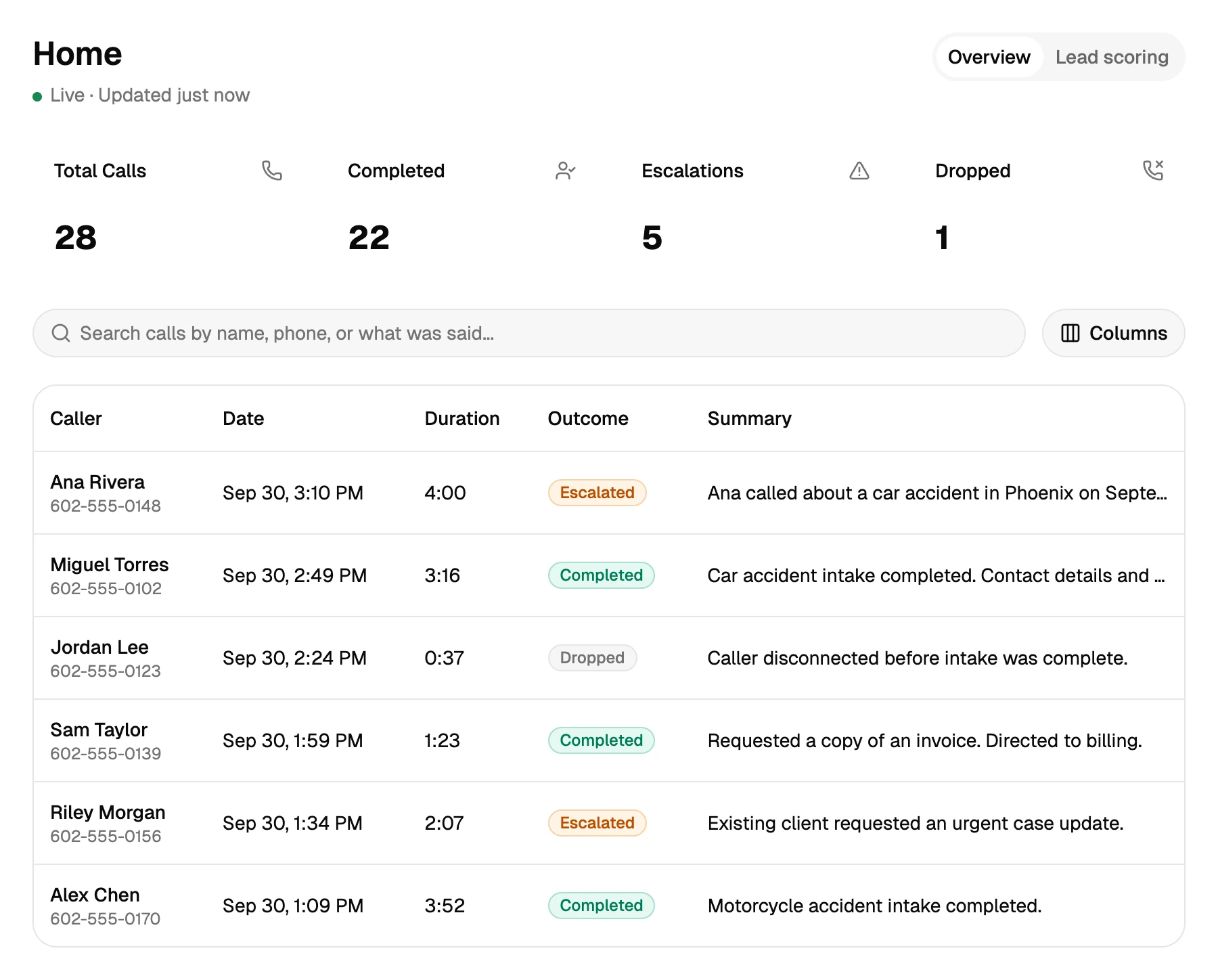
The outcome gives you a place to start:
- Completed marks a completed intake. Review the information and decide on follow-up; it doesn’t mean the firm has accepted the case.
- Escalated identifies a call escalated to the team. Read the record to understand the handoff and confirm who is taking the next step.
- Dropped flags a call that ended before the process was complete. Check what information was captured and whether your team can call back.
For example, your intake coordinator might begin the morning by reviewing calls from the previous evening. They can open each record, check the summary, and determine who should respond. A dropped call with a callback number may need attention alongside a completed intake.
The dashboard shows what happened on the phone. Your firm needs a clear agreement about who reviews those records and handles follow-up. Use your usual task or case-management process to keep track of that work.
Get the summary to the people who need it
You don’t have to watch the dashboard all day to learn that a call has finished. Lighthouse sends call-summary emails according to the firm’s notification settings.
A summary can go to the requested team member or the people assigned to the relevant call category. Configured firm recipients, such as an administrator, can also receive a copy. A billing question can therefore reach billing while keeping the administrator informed.
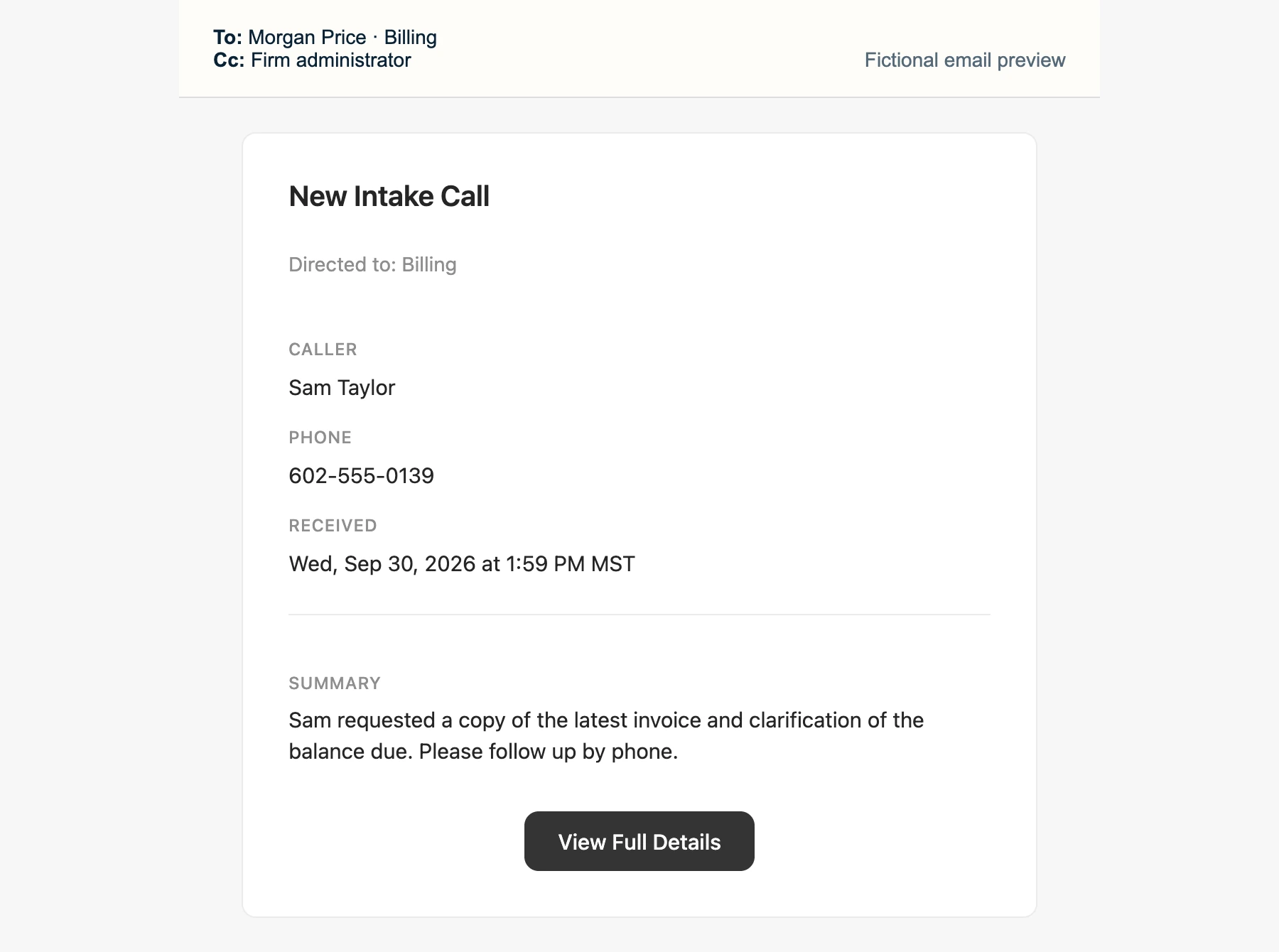
The email gives the recipient a short account of the call and a View Full Details link back to the record. A billing colleague can see what the caller asked for, then open the full details when needed.
Phone transfers and email notifications serve different purposes. The transfer tries to reach someone during the call. The email helps the appropriate people review what happened afterward. Keep both sets of expectations clear within your team.
Continue the work in Clio
If your firm uses Clio, you can connect it to Lighthouse and choose which calls should sync. That helps the information collected during intake reach the place where your team continues its work.
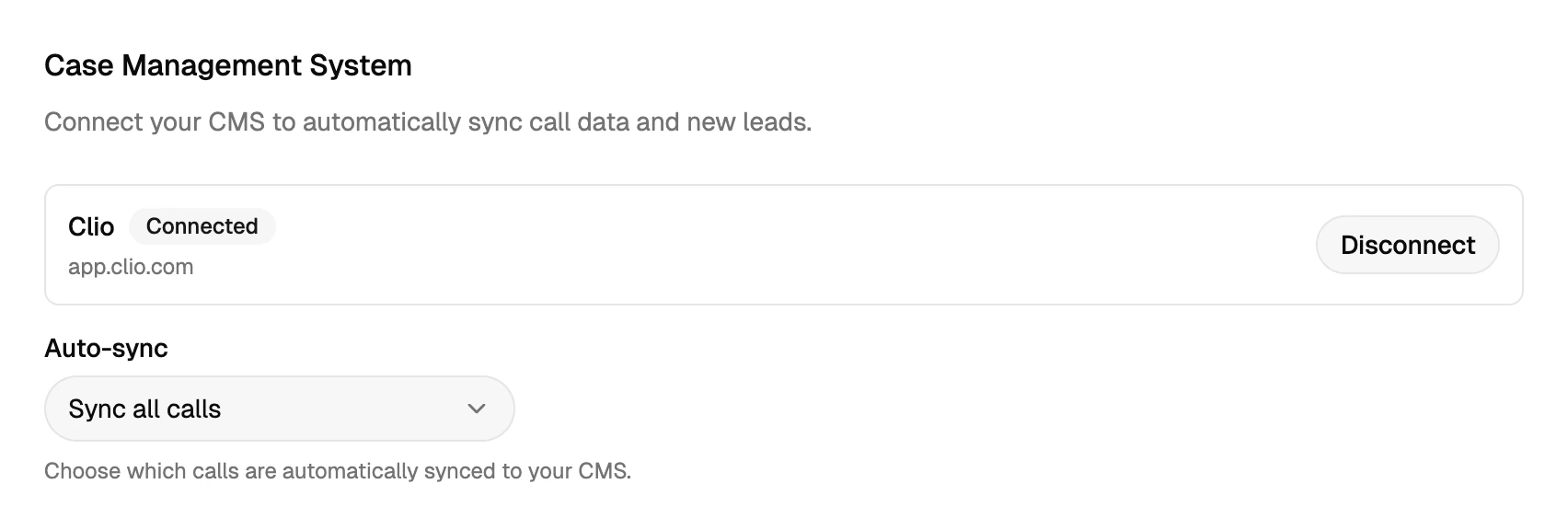
For calls selected to sync, Lighthouse finds or creates a contact and adds a call note with the outcome, summary, and captured details. The call record in Lighthouse can show Synced to CMS once the sync succeeds.
This carries the intake information into Clio. Your team still decides whether to open a matter and how to proceed with the prospective client.
You can also use Lighthouse’s dashboard and email summaries without connecting a case management system.
Make the review part of your routine
Agree on who checks new calls, when they check them, and how they pass work to a colleague. Someone should be responsible even when several people receive the same summary.
As you review calls in the dashboard, look for questions your team keeps asking again. Is a useful intake detail missing? Are billing requests reaching the right person? Do the after-hours contacts still reflect who is available?
Those are reasons to revisit your Lighthouse settings. The records show you where the process could use an adjustment.
To see this workflow with the kinds of calls your firm receives, book a live demo with our team. We’ll walk through what your staff would see and how they’d use it to follow up.