Start with Microsoft Lists if your firm already uses it and needs one shared request list. Consider Airtable when you need connected tables and a separate screen for staff to work from. For a small records tracker, either can work. The better choice is the one your team can keep current, with the right access and a clear owner.
First check your case software. If it already tracks each provider request, use that feature before adding another place to update. A second tracker can leave two people looking at different answers.
We build AI answering for personal injury firms. This guide covers a later staff task. We checked Microsoft and Airtable’s public documentation on November 4, 2026. We have not tested the two products side by side.
Know what you’re tracking
A request tracker is a shared list of work. Each row says what your firm asked a provider to send, what has arrived and what someone needs to do next. The medical records themselves can stay in your firm’s approved case-file system.
In Microsoft Lists, a row is an item. In Airtable, it is a record inside a table. A column, called a field in Airtable, holds one detail, such as the owner or next follow-up date. An Airtable base holds one or more tables. A view shows those same rows in a chosen order or with a filter. It does not create a new copy of the work. Airtable’s table guide explains these parts.
For a simple tracker, use one row for each provider request. Give it its own Request ID. A case with three providers has three rows. If you later make a second request to one provider, give that request a new ID so staff can tell them apart.
Compare the daily work
| Your firm’s need | Microsoft Lists | Airtable |
|---|---|---|
| One shared request list | A good starting point if Lists is already available to your staff. | A table in a base can hold the same requests. |
| Cases, providers and requests connected together | Lists supports relationships between lists. Plan these before splitting up a simple tracker. | A base can hold connected tables, such as Cases, Providers and Requests. |
| A simpler staff screen | Start with a clear list and useful views. | Interfaces can give staff a separate screen built from base data. Access still needs careful setup. |
| Staff access | Check the SharePoint site’s existing access as well as the list’s sharing choices. | Check workspace, base and interface access. A filtered view does not limit what someone with base access can open. |
| Cost to add this tracker | Confirm your firm’s Lists license and any setup work with its Microsoft administrator. | Check the workspace plan and each staff member’s role; some roles add a paid seat. |
The Lists creation guide covers its list options and relationships. Airtable’s permissions guide explains how base access and interface access fit together.
Do not move to several connected tables just because you can. For three requests, a single table is easy to read. Separate tables become useful when staff keep typing the same provider details or need to see all requests for one case together.
Follow one case
Here is an invented example from Big Apple Personal Injury. Jordan handles three requests for case BA-104. Each asks for records and an itemized bill for care from September 8 through October 12, 2026.
| Request | Provider | What has arrived | What is still needed | Next follow-up |
|---|---|---|---|---|
| R-01 | North ER | Nothing yet | Records and bill | November 5 |
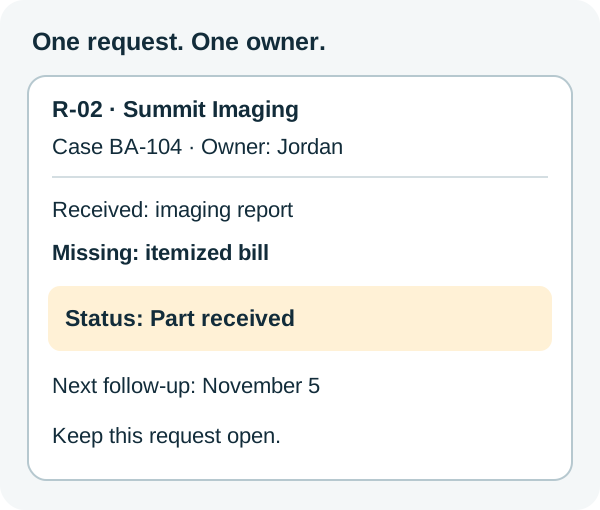
| R-02 | Summit Imaging | Imaging report | Itemized bill | November 5 |
| R-03 | Harbor PT | Records and bill, checked by staff | Nothing | None; request checked |
Summit Imaging is the key test. Something has arrived, but the request is still open. A green “received” label would hide the missing bill.
Download the three-row CSV exercise. A CSV is a plain table file that both tools can import. It contains the rows above, an owner, the requested date range and a place for a case-file link. Start with this sample before entering client information.
Try the same rows
Use an approved work account and a place where your firm permits this tracker. In Lists, you need permission to create the list. In Airtable, an Owner or Creator can import data into an existing base. Ask the person who manages the workspace if that option is missing.
- Create the sample list or table. In Microsoft Lists, select + New list → From CSV, choose the downloaded file and follow the import choices, then select Create. In an existing Airtable base, select + Add or import → CSV file → Upload file. Choose Create a new table, then Next. Keep Use the first row as headers on, review the fields and select Import. Use the browser for this Airtable exercise; its mobile app does not offer this import.
- Check the result before changing it. You should have exactly three rows: R-01, R-02 and R-03. Make sure November 5 did not turn into May 11. Use date fields for the requested and follow-up dates. Keep Request ID as text. If the import guessed a field type poorly, fix it before adding more rows.
- Keep the choices short. Use three status values: Waiting, Part received and Checked. The sample’s R-02 is Part received. Do not mark it Checked until the missing bill arrives and staff check it. Use a named staff member as the owner, not “the team.”
- Find the next day’s work. Find open requests with a next follow-up of November 5. R-01 and R-02 should appear; R-03 should not. If the missing-bill row disappears, the tracker is hiding unfinished work. Fix that view or status rule before relying on it.
- Hand it to another staff member. Have a colleague find R-02, name what is missing and identify Jordan as its owner. They should be able to do this from the row without asking you to explain a color. In Last follow-up, have them enter “November 5: asked for itemized bill again.” If they cannot update it, check their access before making the tracker part of daily work.
The dates here are staff follow-up dates. They are not legal deadlines or a promise about when a provider must respond. Set the real follow-up plan with the person responsible for the case.
Keep unfinished requests open
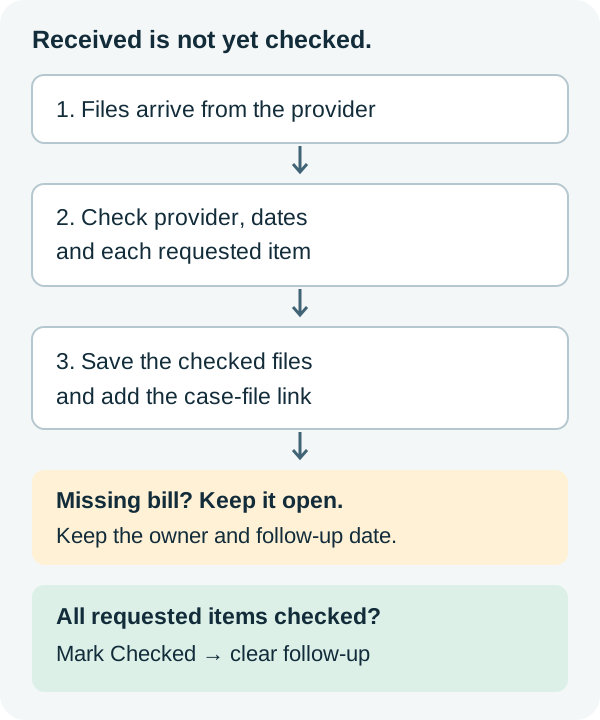
When files arrive, Jordan checks the provider, date range and requested items. Jordan then puts the accepted files in the approved case-file system and adds its link to the request row.
For R-02, receiving the imaging report changes the status to Part received. It does not erase the next follow-up. When the itemized bill arrives, staff check it and confirm that the request is complete. Only then does the row become Checked and lose its next follow-up date.
A link to a file does not grant access to it. Test the case-file link with the same colleague. If it opens for you but not for them, fix the file’s access through your firm’s normal process.
Choose a daily owner for the open-request review, even if you later add reminders. Test any reminder with a sample date and confirm who receives it. A rule saved in the tool is not proof that a follow-up happened.
Check who can enter
Use the sample rows to check access before real cases go into the tracker.
In Lists, Share offers Can edit list, Can edit items and Can view. Staff who only update request rows may need Can edit items rather than permission to change columns and views. People may also already have access through the SharePoint site. A new sharing link does not remove that earlier access. Microsoft explains the choices here.
In Airtable, someone with base or workspace access may see more than a screen filtered to their name. Do not use a saved base view as a way to keep cases private. If a person should only use a limited interface, have the workspace owner check all their access paths using Airtable’s interface permissions guide.
If everyone using the tracker may see all its rows, check that a colleague who has not been given access cannot open it. If access must differ by case, have your administrator arrange an allowed sample row and a separate restricted one. Test both as the staff member. The restricted row should stay closed. If it opens, fix access and test again. Hiding a column or changing a filter does not solve the access problem.
Count the paid seats
For Lists, ask your firm’s Microsoft administrator whether your current plan includes it. Also ask who will own the list when its creator leaves. Do not buy a second tool until you know what your firm already has.
Airtable’s listed Team price, checked November 4, is $20 per user per month when billed annually. Three billable staff members would cost $60 per month as an annual equivalent, or $720 for the year, before tax or add-ons.
Count roles carefully. On Team, a Commenter is also billable. Giving a person comment access instead of edit access does not avoid that seat charge. Read-only access is different. Airtable’s billing guide lists the roles and explains that billing differs by plan.
A free plan can be useful for a small exercise. Before real use, check its current record, staff and automation limits against your expected workload. Count open and completed requests, not just the three rows in this sample.
Choose from the exercise
Choose Lists if the firm already supports it and the sample stays clear in one shared list. Choose Airtable if connected tables or a separate staff interface solve a problem your team actually has—and the access setup and seat cost fit.
Keep the tracker where staff will update it. A simpler list that gets checked each day is more useful than a richer one with old dates.
If your first decision is who should obtain the records, start with ChartSquad vs Record Grabber. Once that path is set, use the tracker to make each missing item, owner and next action visible.