You don’t have to change your whole phone setup to try Lighthouse.
With our free two-week trial you can:
- Start by calling the agent yourself. Your Lighthouse agent gets its own phone number, so you can test it without affecting your phone line at all.
- Invite other people to test it. Ask your friends, family, or colleagues to call the agent. We recommend asking at least 5 other people to test it, so that you feel confident.
- Run a limited test with real callers. Set up call forwarding so calls only go to Lighthouse during specific hours. Start with smaller time windows, such as Tuesdays and Thursdays from 6–9 p.m., so you can get comfortable with Lighthouse before expanding.
Use the one-page trial worksheet (PDF) to plan your hours, check the connection, and compare results.
If you have any questions or need help, email Ravi at ravi@lighthouselegal.ai or Frank at frank@lighthouselegal.ai, and we’ll help you get set up.
Call it yourself
Your Lighthouse agent gets its own phone number, so there’s no need to update your existing phone line yet. You can call that number directly, just like a client would.
You’ll find it under Agent number in the bottom-left corner of your dashboard:
Ask questions about your firm and the cases you handle, similar to how a client would. Then try a couple of made-up intake calls. You might call about a car accident, then ask about a matter your firm doesn’t take. A few test calls take less than 20 minutes.
Read the call records afterward to see whether Lighthouse gave the right answers and asked for the details you need. If any firm information is wrong, update your settings and try another call. Our setup walkthrough shows how to choose intake questions and who receives calls.
Invite testers
Once you’ve tried it yourself, send the agent’s number to family, friends, and colleagues. You can ask them:
Call as if you need help from our firm. Make up the details and ask whatever comes to mind.
Let them choose their own questions so you hear a wider range of calls.
Allow one to three days for this step, depending on how many people you ask and their availability.
You’ll see all their calls in the Lighthouse dashboard. Open one while it’s happening to read what your tester and the agent say as they talk.
Ask your testers what felt confusing or awkward. Use the call records to check what happened and make any changes before trying real clients.
Choose your trial hours
When you’re comfortable with the test calls, try Lighthouse for a few hours during the week.
For example, forward calls on Tuesdays and Thursdays from 6–9 p.m. Leave your current setup in place at all other times.
Your clients still dial your firm’s usual number. Your phone system sends those calls to Lighthouse during the hours you’ve chosen. This is call forwarding, and it lets you keep your number and phone provider.
Set up forwarding
We can help you set this up. Email Ravi at ravi@lighthouselegal.ai or Frank at frank@lighthouselegal.ai if you get stuck or want us to walk through it with you.
You’ll set up forwarding through your current phone service. Where you do that depends on the provider:
- Your provider may have a website or app where you enter Lighthouse’s number and choose the hours. RingCentral supports rules based on the day and time.
- Some services use commands you dial from a phone. AT&T’s guide covers phone commands and online settings for its business phone service.
- If someone manages your phones for you, ask them or your provider to set up forwarding.
If you’re asking your provider to do it, you can send something like this:
Please forward calls to our main number to [Lighthouse number] on Tuesdays and Thursdays from 6–9 p.m. in [timezone], through [date]. Keep our current setup at all other times. Please preserve the original caller’s number and show us how to turn this forwarding rule on and off.
Ask your provider whether forwarding costs extra. If your plan doesn’t support schedules, ask how to switch forwarding on and off for the hours you’ve chosen.
You choose when calls go to Lighthouse through your phone provider. In your Lighthouse routing settings, you choose which people on your team the agent can connect callers to.
Check the connection
Before you forward real calls, call your firm’s usual number from your mobile with forwarding turned on.
Here’s what to check:
- Does Lighthouse answer without a long wait or an unexpected menu?
- Does the call record show your mobile number instead of your firm’s number?
- Did Lighthouse save the details you gave correctly?
- Can it connect you to the staff member you’ve chosen? Try another call when that person doesn’t answer to hear what the agent does.
Providers don’t all handle caller ID the same way. Zoom’s caller-ID guidance explains why the receiving phone may not see the original caller’s number.
If your mobile number doesn’t show up correctly, get in touch with us and your phone provider so we can check the setup. Lighthouse also asks callers to confirm or provide their best callback number.
Turn forwarding off and call again to check that your normal setup works, then turn it back on for the trial hours.
Review the real calls
After each evening, open the calls in your Lighthouse dashboard. Read the transcripts, check the intake details, and see which calls connected to your team.
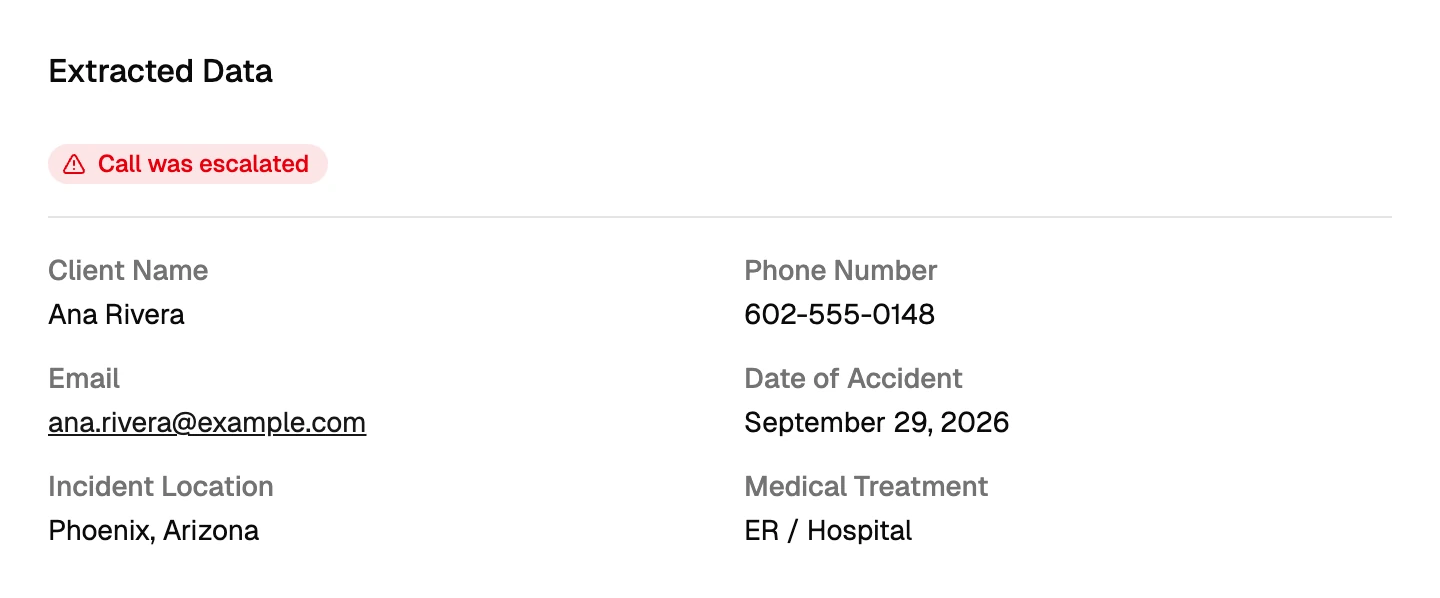
For each evening, note:
- How many callers left a name, callback number, and the details your staff need.
- Whether calls reached the right people.
- Anything Lighthouse got wrong or didn’t ask.
- How much time your staff spent following up.
Compare those notes with similar evenings under your current setup. If only a few people call, you’ll have a small sample to judge from.
Our dashboard walkthrough shows where to find these records.
Plan your next step
Before your two weeks are up, go through the calls with your team. Were callers’ questions answered? Did your staff have what they needed to follow up? Use those conversations to decide whether Lighthouse is a good fit and which hours you’d like it to cover.